
 Best Platforms
 Live Odds








How to Build an Implied Probability Calculator: 7-Step Spreadsheet Setup
A step-by-step guide to building an implied probability calculator in a spreadsheet — pick the right platform, define American/decimal/fractional formulas, design a clean input UI, add validation and error handling, and unify outputs with consistent rounding.
Odds look simple until you try to compare formats. American, decimal, and fractional prices all tell the same story, but they don’t translate cleanly in your head—especially when you need a quick implied probability you can trust.
This guide walks you through building a spreadsheet calculator that converts each odds type into implied probability, with a clear input area, guardrails that prevent bad entries, and a single output formula that stays consistent across formats. You’ll finish with a workbook you can reuse and extend.
Tooling checklist
Your calculator is only as reliable as the tooling behind it. Pick a spreadsheet stack you can share, audit, and maintain without breaking formulas.
Choose a platform
Pick the sheet app first, because function quirks and sharing flows change your design.
| Platform | Best for | Sharing | Compatibility |
|---|---|---|---|
| Excel | Heavy models | Files, OneDrive | Strong, varies |
| Google Sheets | Fast collaboration | Links, permissions | Some Excel gaps |
| LibreOffice Calc | Offline, free | Files | Some function differences |
Choose the platform your collaborators already trust, or you will debug “tooling” instead of math.
Name key functions
Lock in the core functions early, so every conversion stays consistent.
- IFERROR for clean outputs
- ABS for sign handling
- ROUND for display control
- POWER for fractional math
- Basic arithmetic for conversions
If you standardize these, you can port the calculator between apps with fewer surprises.
Decide on inputs
Start with the odds formats you expect to see daily, then add others once the math is stable. American and decimal cover most workflows, while fractional is common in specific markets.
If you also accept “price” inputs, decide what that price represents upfront, because naming confusion causes silent errors.
Plan sheet structure
Separate concerns like you would in code, because calculators grow messy fast. Use an Inputs tab for raw entry, a Calculator tab for formulas, a Validation tab for checks, and a Notes tab for definitions.
When something breaks, this layout tells you where to look in minutes, not hours.
Define the math
If your math changes by odds format, your spreadsheet will quietly disagree with itself. Lock the formulas and rounding rules first, or every later feature becomes a guessing game.
American formulas
Convert American odds to implied probability so + lines and - lines land on the same scale. In a spreadsheet, ABS() keeps the negative-case formula readable.
- If odds > 0: probability = 100 / (odds + 100).
- If odds < 0: probability = ABS(odds) / (ABS(odds) + 100).
- If odds = 0 or blank: return NA() or empty.
- Wrap with IFERROR() to catch non-numeric inputs.
- Format as percent, but keep the stored value as a decimal.
Once this is stable, every other column becomes plug-and-play.
For reference, these are the standard implied probability formulas across odds formats.
Decimal formula
Decimal odds are the cleanest conversion, but they can still break if inputs are invalid. Add a guard for odds values that cannot represent a real market.
- If decimal_odds > 1: probability = 1 / decimal_odds.
- If decimal_odds ≤ 1: return NA() or a flagged error.
- Use IF(decimal_odds>1, 1/decimal_odds, NA()).
- Use IFERROR() if the cell may contain text.
If you don’t police odds ≤ 1, you’ll publish “probabilities” above 100%.
Fractional formula
Fractional odds a/b convert by treating the payoff as a over b and adding the stake. The implied probability is b / (a + b).
If users type “5/2” as text, split on “/” to parse a and b, then coerce them to numbers. If either side is missing or non-numeric, return NA() so bad inputs don’t look valid.
Rounding rules
Rounding problems are usually display problems pretending to be math problems. Decide what you store, what you show, and where you round.
- Store probability as a decimal, not a formatted percent.
- Round only for display, not for intermediate calculations.
- Use a fixed percent format, like 1 or 2 decimals.
- Keep internal calculations at full precision.
- Standardize “invalid” as NA() or a single error label.
Consistent rounding is what makes cross-format outputs comparable at a glance.
Build the workbook
A clean workbook layout makes your calculator easier to audit and safer to extend. You want readable formulas, predictable inputs, and results that never hide mistakes.
Create tabs
Separate responsibilities so each sheet stays boring and reliable.
- Create Inputs for odds type, odds value, and any toggles.
- Create Calculator for all conversion formulas and outputs.
- Create Validation for rules, helper checks, and error flags.
- Create Notes for assumptions, examples, and version changes.
When something breaks, you’ll know exactly where to look.
Add named ranges
Named ranges keep formulas readable and avoid fragile A1 references.
- In Inputs, select the odds type cell and name it odds_type.
- Select the odds value cell and name it odds_value.
- In Calculator, select the implied probability output and name it prob_raw.
- Name any other outputs you’ll reuse, like fair_odds and overround.
Readable names turn debugging into editing, not archaeology.
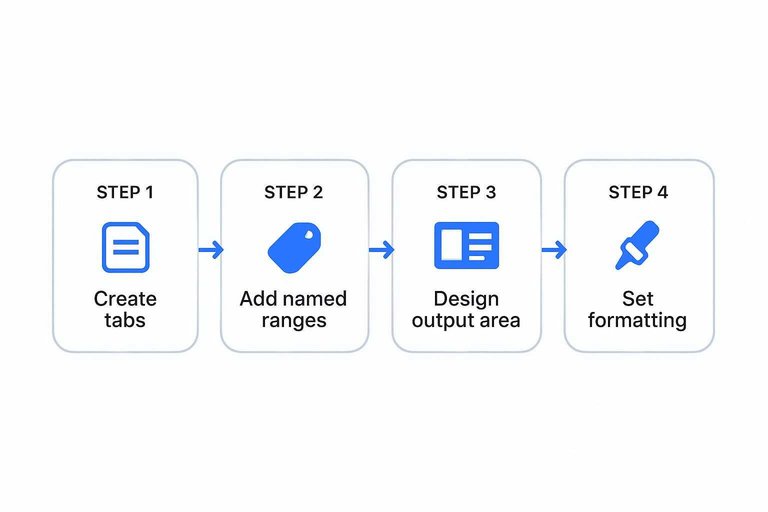
Design output area
Treat results like a small dashboard, not a random cluster of cells. Put a labeled block at the top of Calculator with three lines: Implied Probability, Fair Odds, and an optional Overround section if you’ll support multi-runner markets later.
Keep each result to one value cell, aligned in a single column, with units baked into formatting. Your goal is one glance: probability in percent, odds in your chosen display type, and overround only when it applies.
A tidy results block makes errors obvious before users trust the number.
Set formatting
Formatting should prevent misreads and surface invalid inputs fast.
- Format implied probability as percent with consistent decimals.
- Format odds with consistent decimals per odds type.
- Use data validation dropdown for odds type.
- Apply conditional formatting for blanks and invalid ranges.
- Style inputs and outputs with distinct fills.
If the sheet can “look right” while being wrong, it will.
Step 1: Inputs UI
Your calculator lives or dies on input quality. Make the input area obvious, forgiving, and hard to misuse.
Imagine someone pastes “+150 ” with a trailing space. Your sheet should still behave.
Odds type selector
Create one selector so users declare the format before they type values. You want a clean internal flag you can reference in every formula.
- Add a cell labeled “Odds type” above your inputs.
- Apply Data Validation with a dropdown: American, Decimal, Fractional.
- In a nearby hidden cell, map the choice to a normalized code: AMER, DEC, FRAC.
- Set a default selection, usually American or Decimal.
- Use conditional formatting to highlight the active input fields by type.
Once you have a reliable type flag, every other guardrail becomes simple.
If you need a quick walkthrough, follow Microsoft’s steps to create a drop-down list with Data Validation.
Odds value fields
Users should see only the fields that match the chosen odds type. You’ll still keep all fields present, but only one set looks “active.”
For American/Decimal:
- One cell labeled “Odds value.”
For Fractional:
- Two cells labeled “Fractional odds” with “Numerator” and “Denominator.”
Defaults that reduce confusion:
- American: +100
- Decimal: 2.00
- Fractional: 1 / 1
Your goal is fewer decisions, not more flexibility.
Help text hints
People enter odds in messy ways. Add tiny hints right where errors happen, not in a distant instruction block.
Examples to show inline:
- American: +150, -120
- Decimal: 2.50
- Fractional: 5/2
Accepted characters to clarify:
- American: +, -, digits
- Decimal: digits, one dot
- Fractional: digits, one slash
Good help text prevents “silent wrong,” which is the worst spreadsheet bug.
Step 2: Validation rules
Bad inputs create fake edges fast. Your spreadsheet should block impossible odds and fail loudly, but kindly.
Validation constraints
Set hard boundaries so your calculator only accepts odds that can exist. Do it early, before you write complex formulas.
- Decimal odds: number, > 1
- Fractional odds: numerator > 0, denominator > 0
- American odds: number, not 0
- Required fields: disallow blanks
Treat validation like a seatbelt. You only notice it when it saves you.
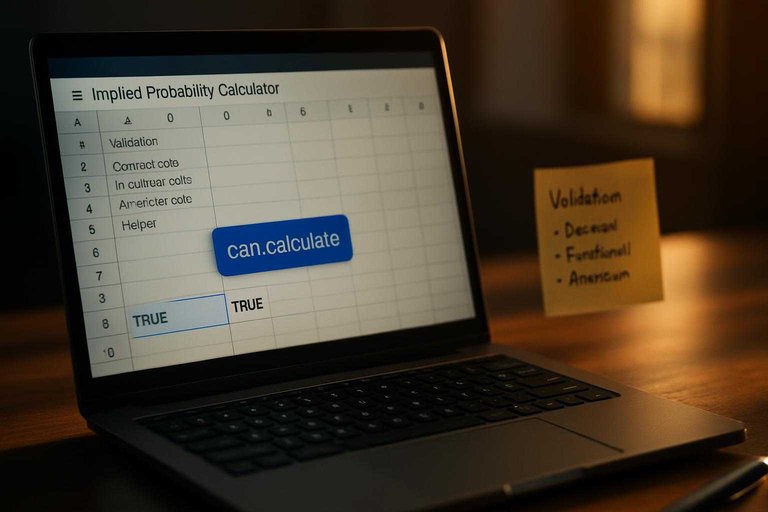
Helper check cells
Use hidden checks so every formula can ask, “Is this safe to compute?” It keeps your sheet readable and your logic testable.
- Add is_valid_type: TRUE when the odds type is selected.
- Add is_valid_value: TRUE when the input meets its rules.
- Add is_fractional_safe: TRUE when denominator is not blank or zero.
- Add can_calculate: AND(is_valid_type, is_valid_value, is_fractional_safe).
- Reference can_calculate in all result formulas.
Once checks exist, your main formulas get boring. Boring is good.
Error messaging
Even with validation, users paste weird stuff. Your result area should respond with a clear sentence, not a cryptic Excel error.
Use patterns like:
- IF(can_calculate, result_formula, “Select an odds type and enter a valid value”)
- IFERROR(result_formula, “Fix the input format”)
Write messages that tell the next action. Confusion is a conversion killer.
Step 3: Conversion formulas
Your calculator works or fails here. Get the conversion right, then reuse it everywhere with one probability output cell.
American probability
You need one formula that handles both + and - American odds. Keep the branches explicit, and clamp bad inputs before they leak.
- Create an input cell for American odds, like
B3. - In your probability cell, start with a blank guard:
=IF(B3="","", ... ). - Add the positive-odds branch:
IF(B3>0, 100/(B3+100), ... ). - Add the negative-odds branch:
IF(B3<0, -B3/(-B3+100), ... ). - Wrap the full expression with
MAX(0, MIN(1, ... ))to block negative or >1 outputs.
If your probability ever goes below 0 or above 1, treat it as a formula bug, not “edge behavior.”
Decimal probability
Decimal odds convert fast, but they can silently break when odds are 1 or lower. Guard early, then compute cleanly.
- Put decimal odds in a cell like
B4. - Start with a blank guard:
=IF(B4="","", ... ). - Block invalid decimals:
IF(B4<=1,"", ... ). - Compute raw probability:
1/B4. - Wrap with
IFERROR(...,"")to keep the sheet quiet on bad inputs.
Your goal is boring output: either a valid probability, or an empty cell. Nothing in between.
Fractional probability
Fractional odds need two inputs, like numerator B5 and denominator C5. Use =IF(OR(B5="",C5=""),"",IF(OR(B5<=0,C5<=0),"",C5/(B5+C5))) to compute denominator/(numerator+denominator) while blocking zeros and negatives.
If you don’t guard the inputs, one bad fraction will poison every downstream metric.
Unified output formula
You want one cell that returns prob_raw, regardless of odds format. Put the odds type in a selector cell, like B2 with values such as American, Decimal, Fractional.
Use SWITCH or IFS to route to the right conversion, like =SWITCH(B2,"American",prob_american,"Decimal",prob_decimal,"Fractional",prob_fractional,"") where each prob_* is either a named formula or a helper cell.
Once you have a unified prob_raw, every other feature becomes a simple reuse problem.
Implied Probability With Bookmaker Margin (Overround) and How to Remove Vig
Basic conversions assume “fair” odds, but real markets usually include a bookmaker margin (also called vig, juice, or overround). That means the raw implied probabilities you calculate from listed odds will typically add up to more than 100% for a mutually exclusive set of outcomes (like Home/Draw/Away).
For an implied probability calculator that reflects how people actually use odds, you’ll usually want two outputs:
- Market implied probability (with vig): straight conversion from odds.
- Fair probability (no vig): normalized probabilities that remove the margin.
Below is a spreadsheet-friendly way to measure the margin and “de-vig” a market using only arithmetic—no advanced tools required.
Measure the overround from a set of odds
For a market with outcomes that cover all possibilities (e.g., 2-way moneyline or 3-way soccer), first convert each outcome’s odds to market implied probability.
Decimal odds
- Market implied probability:
p_i = 1 / d_i
American odds (if you’re using American inputs)
- If
A_i > 0:p_i = 100 / (A_i + 100) - If
A_i < 0:p_i = (-A_i) / ((-A_i) + 100)
Then compute the market total:
- Overround sum:
S = SUM(p_1, p_2, ..., p_n)
Interpretation:
- If
S = 1.00, the market is (approximately) fair. - If
S > 1.00, the market includes margin.
A handy margin readout:
- Overround (as a percentage):
(S - 1)
Spreadsheet tip: keep S as a decimal (e.g., 1.06) and format a separate cell as a percent for readability.
Remove vig by normalizing probabilities (simple, common approach)
The most straightforward way to remove the bookmaker margin is to scale each outcome’s market probability so the set sums to 100%.
- Calculate each outcome’s market implied probability
p_i(from your existing conversion formulas). - Calculate
S = SUM(p_i). - Compute the fair (no-vig) probability:
p_i_fair = p_i / S
This guarantees:
SUM(p_i_fair) = 1.00
If you want to display a “fair odds” equivalent after removing vig:
- Fair decimal odds:
d_i_fair = 1 / p_i_fair
Where this works best: normalizing is widely used, easy to audit, and fits well in a spreadsheet workflow—especially for 2-way and 3-way markets where all outcomes are included.
Spreadsheet layout suggestion (drop-in addition)
Assuming you already have a table of outcomes with odds and a column that outputs market implied probability:
- Column A: Outcome name (Home / Draw / Away)
- Column B: Odds input (decimal or American)
- Column C: Market implied probability
p_i(from your Step 3 formulas) - Cell C_total (below the table):
=SUM(C2:C4)(adjust range) - Column D: Fair probability
p_i_fair:=C2/$C$total - Column E (optional): Fair decimal odds:
=1/D2
Formatting tips:
- Format probabilities as percentages with a consistent number of decimals.
- Add conditional formatting to flag when the market doesn’t sum meaningfully above 100% (e.g., missing outcomes, bad inputs).
Common pitfalls and edge cases
- Only de-vig complete markets: If your table is missing an outcome (or includes mutually non-exclusive outcomes), normalizing will produce misleading “fair” probabilities.
- Rounding noise: Display rounding can make totals look slightly off; keep underlying calculations unrounded.
- Mixed odds formats: Convert to a single internal representation (probability or decimal) before computing
S. - Two-way vs. each-way/props: Some markets aren’t a single closed set; de-vigging only makes sense when the outcomes collectively cover the entire event.
If you want your calculator to be robust, consider including a “Market type” selector (2-way, 3-way, custom N outcomes) that controls the expected number of outcomes and validation messages.
Build It Once, Trust It Every Time
- Lock in your inputs (odds type + value fields) and keep the output area separate and clearly labeled.
- Add validation and helper check cells so invalid odds never reach your conversion formulas.
- Implement the three conversion formulas, then route them through one unified implied-probability output with consistent rounding.
- Test with a handful of known examples in each format, document the assumptions (rounding rules, acceptable ranges), and save the sheet as a reusable template.
Frequently Asked Questions
- Is implied probability the same as a bookmaker’s true probability?
- No. Implied probability reflects what the odds suggest, while a bookmaker’s true probability can differ because odds often include margin/overround and market adjustments.
- How do I calculate implied probability from decimal, fractional, and American odds?
- Convert each odds format to probability using its standard formula (e.g., decimal uses 1/odds), then format the result consistently as a percentage. If you need one sheet that supports multiple formats, add a format selector that routes to the correct formula.
- How do I remove the bookmaker margin (overround) in an implied probability calculator?
- Normalize probabilities by dividing each selection’s implied probability by the sum of implied probabilities for the whole market. This converts “raw” implied probabilities into no-vig probabilities that sum to 100%.
- How do I measure whether my implied probability calculator is working correctly?
- Cross-check your outputs against known test cases and an independent odds converter, and verify that edge cases (very short and very long odds) don’t produce negative values or probabilities over 100%. Keep a small “test cases” tab so you can rerun checks after edits.
- Can I use an implied probability calculator to find value bets?
- Yes. Compare your estimated true probability to the implied probability from the odds; if your true probability is higher, the bet is usually +EV in theory, assuming your estimate is well-calibrated.